

First Week
Welcome back
Section titled “Welcome back”Now that you’re more settled in, this section of the guide will help you navigate your first week to help you be prepared for more typical KBR procedures and upcoming projects.
This page will help you through the following processes:
- Setup Bluebeam Revu
- Setup Digital Signatures
- Outlook Email Signature
- Timesheets
- Office Desk Booking
- Defence Security Clearance
Setup bluebeam revu
Section titled “Setup bluebeam revu”KBR often uses Bluebeam Revu to sign and review documents, however you are free to use whichever PDF editor you are comfortable with. Bluebeam can be a little bit tricky to set up so please see the steps below on how to get Bluebeam and how to activate your account:
Steps to Setup Bluebeam Revu
- Submit a DASH Ticket to install Bluebeam Revu on your laptop.
- Open Bluebeam Revu.
- In the login pop-up window, you need to always choose United Kingdom domain to login to Bluebeam. Then use your normal KBR Email Address and Password to login.
- Once your Bluebeam login is successful through the UK licensing, you can click on your email address on the top-right-hand corner in Bluebeam:
- Successful Check that you see the following:
- Region: Bluebeam United Kingdom
- Plan: Complete
- Failed Otherwise, if you see the following description, you need to log off and correctly login again:
- Region: Bluebeam Australia
- Plan: Unassigned
- Successful Check that you see the following:
- If you are successfully logged in to Bluebeam, you should find all menus and icons fully activated, including editing toolbox.
- On the bottom-left-handed toolbar of the Bluebeam, you can find the “Studio” icon which represents “Bluebeam Studio”. Click on Studio icon, then login to it using your credentials using UK as the region domain as well.
- Note: by now, you should have simultaneously logged into your Bluebeam and Bluebeam Studio within the UK domain; and have them ready to use.
- If you have any questions and/or issues with Bluebeam, you can:
- Check out Bluebeam Revu - Product Use Information,
- Submit a DASH Ticket or,
- Have a chat with the IT Team Member (e.g., Michael Watson Michael.Watson@kbr.com)
Setup digital signatures
Section titled “Setup digital signatures”KBR uses digital signatures to sign all forms, drawings, reports, etc. depending on the type of documents, two methods can be used which will either be a Digital Signature or DocuSign:
Digital signatures can be done in Bluebeam or any other PDF Editor you’re comfortable with. Digital signatures are typically used for signing deliverable files (reports, drawings, etc). Please do this in the first week or so as deliverables you’re a part of will need to have your digital signature.
To set up a digital signature in Bluebeam, please follow the steps below:
- Create a PDF on Bluebeam by going on File, New PDF. Change the Orientation to Landscape and keep everything else as the default.
- Draw your signature using the Pen Tool and change the colour to black with the properties panel. Use the whole page to draw your signature else it will come out very small.
- Save the PDF document on your computer.
- Then create another new blank PDF.
- Find on the top bar Tools, Signature, Sign Document.
- Draw a rectangle anywhere on the blank PDF to create a signature field.
- To create a signature, under Appearance go to New
- Create a standard title (Eg. Signature Drawn), select File under Graphic and choose your drawn signature that you saved before, then remove all Text fields.
- Click OK and your signature should now be ready to go!
Setup DocuSign - typically used for signing commercial forms (bid approvals, contracts, etc) since the document lives online in the DocuSign system. This is a lower priority and can be done in the first couple of months.
Outlook email signature
Section titled “Outlook email signature”Use a template text signature at the bottom of an email (Chris’s, for instance) and setup your Outlook signature by copy and pasting the text. You will need to save the KBR logo and insert it in the Outlook signature then. To do so:
- Go to Outlook → File → Settings → Accounts → Signatures → New Signature → give it a “Name” → OK
- Select signature to edit → copy and paste the template text signature in the blank box and insert the KBR logo using the “insert image” icon.
- Revise your signature text and adjust the KBR logo as you desire.
- Choose your signature, “Name”, as the default signature for both “New messages” and “Replies/forward” → OK → OK
MSD timesheets
Section titled “MSD timesheets”You will be required to complete your timesheets on Thursday by 4PM every week. Timesheets are completed using Microsoft Dynamic (MSD). To access your timesheets, go to KBR’s Main Sharepoint Page and click on Timesheet Dynamics under Quick Tools.
This means that you’ll need to plan for what tasks you’ll be doing on the friday.
For more details, you can visit KBRs official Timesheet Quick Reference Guide.
Office desk booking
Section titled “Office desk booking”KBR adopts a hot desk policy where your desk needs to be booked each day. Although it is encouraged to sit near your team, please don’t feel feel forced to! You are free to sit anywhere you like.
How to make a desk booking
Section titled “How to make a desk booking”To learn how to make a booking, look at the following guides below for both Hummingbird and the Browser:
To see how to book your desks using the Hummingbird app, please see the following guide: KBR Hummingbird Guide
- Visit the site Office Space Reservation.
- Press Log In
- On the left sidebar, go to Reservations - the icon looks like a calendar. Then select My Reservations.
- On the top right, click on +Create Reservation.
- Select a date, time and location, located on the top right.
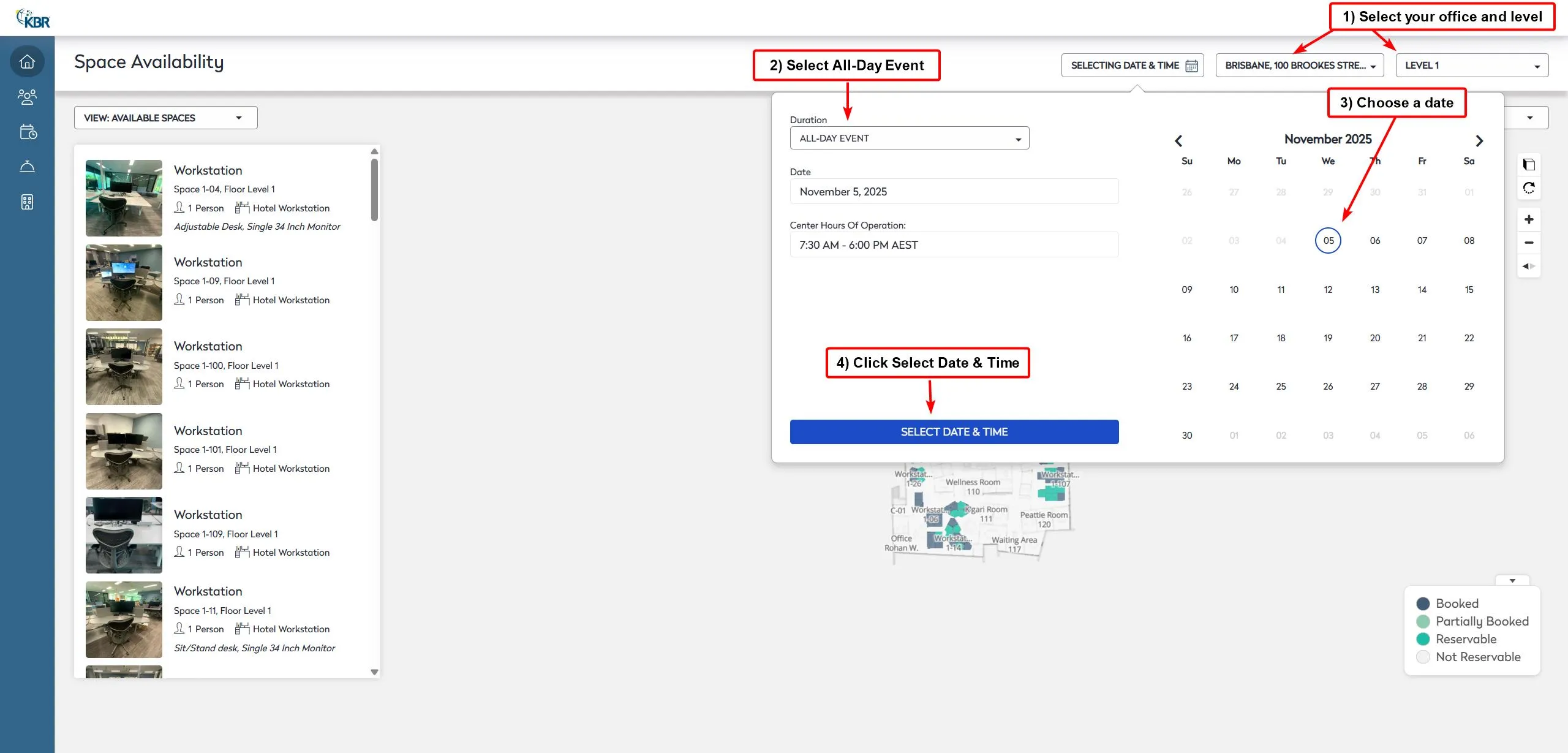
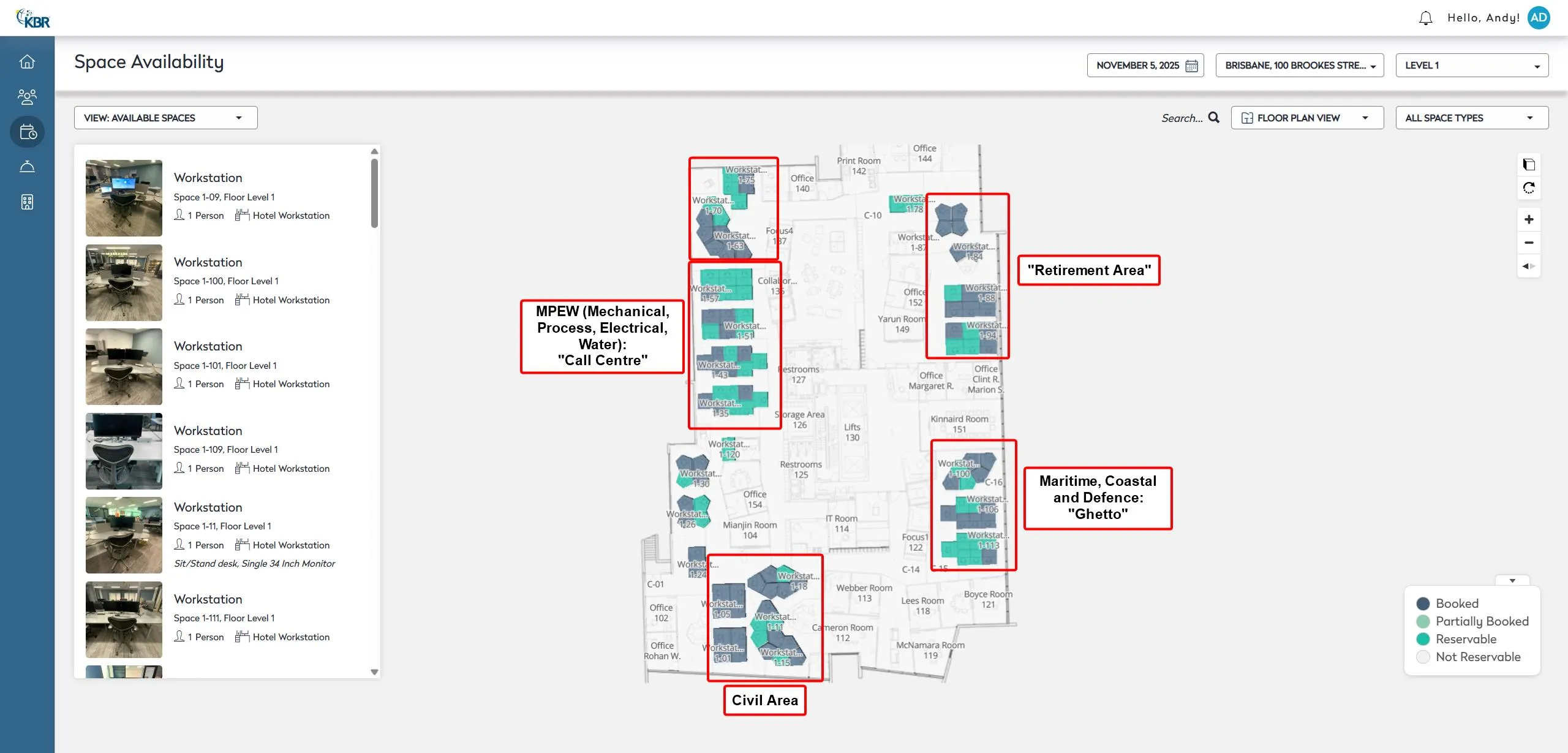
- Choose the seat you would like, then hit Done. Teams generally sit near each other as we tend to work on the same projects, or require help from each other. Teams generally sit within an area, for the Brisbane office we have a couple of funny names for our areas if you want to be familiar with them!
Defence security clearance
Section titled “Defence security clearance”If you are going to be involved with Defence projects, talk to your Discipline Manager or Team Lead to start application process (baseline or NV-1). Note that you will need to be an Australian citizen to apply for clearance.
Other references
Section titled “Other references”For additional guidance, refer to the following documents: