

First Day
Welcome
Section titled “Welcome”Welcome to KBR’s Maritime and Coastal Team,
As a new starter at KBR, it is easy to get lost on what you need to do or where to get started. That is where this guide comes in - to walk you through step-by-step some of KBR’s basic processes, downloading all the essential software and gain access to our key project databases.
For your first day, we hope we can guide you through the following processes:
- Install Mobile Applications
- Complete Workday Trainings
- Install Programs and Software
- Submitting Dash Tickets
- Documentum
Receive equipment
Section titled “Receive equipment”At the start of your first day, you should receive your company computer, a keyboard and mouse, and some headphones.
Install mobile applications
Section titled “Install mobile applications”KBR uses several mobile applications for completing many things such as our 2-Factor authentication or reserving your desk. Below is a list of required and optional mobile applications to download on your personal phone (which can be downloaded through the App Store on iPhone or equivalent for other phones):
- Duo Mobile (required): for your KBR laptop Window’s 2-Factor authentication and email address authorization
- Hummingbird (required): for office desk reservations
- Microsoft Teams (optional): for teams chat and calls using your personal phone. This is particularly useful for when IT requires access to your laptop but still needs a mean to communicate
- Workday (optional): for things you can do using Workday
- BaseUp (optional): for booking car park reservations at our office location: Brisbane - 100 Brookes Street, Fortitude Valley
- Percipio (optional): for learning and development using Percipio
Complete workday trainings
Section titled “Complete workday trainings”As part of your onboarding, KBR requires all new starters to complete a set of compulsory training modules in Workday. These cover important topics such as workplace conduct, safety, and company policies. In addition, there are recurring training modules that all employees must complete periodically to stay up to date.
Steps to Complete Your Workday Trainings
-
Go to our main Sharepoint page: KBR Sharepoint. Under Quick Tools, click on Workday.
-
You may be asked how to log in, if so select the first option: Single Sign-On.
-
From the Workday Page, go to the MENU on the top left corner and then go to Learning.
-
In the Learning Home page, you should see a number of compulsory training.
-
Complete all required learnings assigned to you.
Install programs and softwares
Section titled “Install programs and softwares”To download programs and softwares, you can use either Software Centre or Company Portal for most programs. You can download ESSIA to download some programs.
To get started, it is recommended you download these programs:
- General: Navisworks Simulate, ProjectWise 10, Microsoft Project, Google Earth Pro, Bluebeam Revu, AutoCAD, QGIS, ArcGIS Desktop, Documentum Webtop Prerequisites
- Structural: CheckSteel, IDEAStatiCa, Space GASS, Structural Toolkit, RAM Connection, Adsec, Strand7
- Coastal Modelling: 12D, Surfer, Delft-3D, Swash, XBeach, MIKE Zero (includes MIKE-21 & MIKE-BW)
- Programming: MATLAB, Miniconda or Anaconda (as preferred), Python
- Mooring Analysis: OPTIMOOR
Submitting a DASH ticket
Section titled “Submitting a DASH ticket”A DASH Ticket is KBR’s method of communicating with the IT team for items such as getting new standard/extra software, access to group folders such as Documentum and O:\Drive, using portable storage devices, and much more.
For help on the most common DASH ticket requests, follow the steps below:
- Get to the DASH Ticket portal by going on Workday, under Quick Tools select IT Support Dash OR use this link DASH Ticket Portal
- Select Company Standard Software under Popular Items.
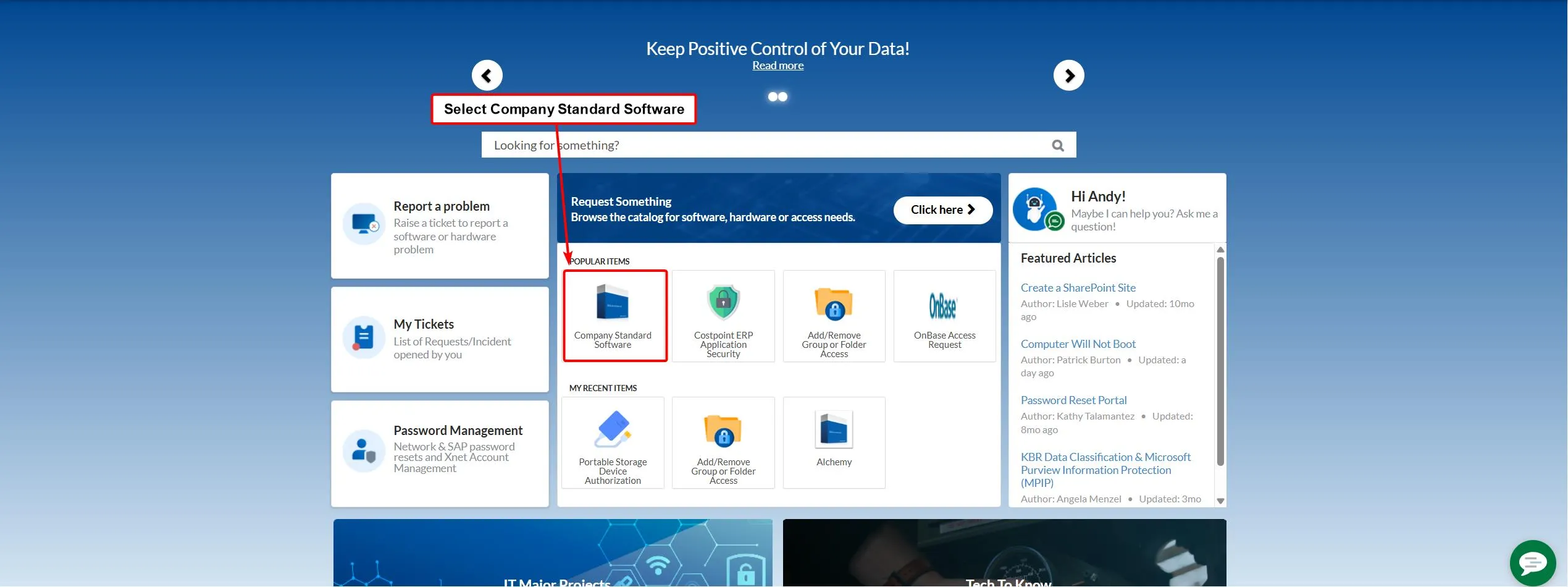
- Choose the software you require.
- For help on required inputs, follow the below steps:
- For the input Is this request for a pre hire?, select No.
- For the input Device to install this software on, the only option should be your laptop number (which can also be found as a sticker on your laptop). Then click Add to Cart
- To add more than one program, repeat Steps 3-4.
- After adding your programs to your cart, select Cart on the top right, then View Cart, then follow these steps on required inputs:
- Approver: this will be your manager (eg. Chris Leaman)
- Office or Cubicle Number: enter your office address
- Business Justification: enter a valid reason for the software required (eg. required for structural analysis and project work.)
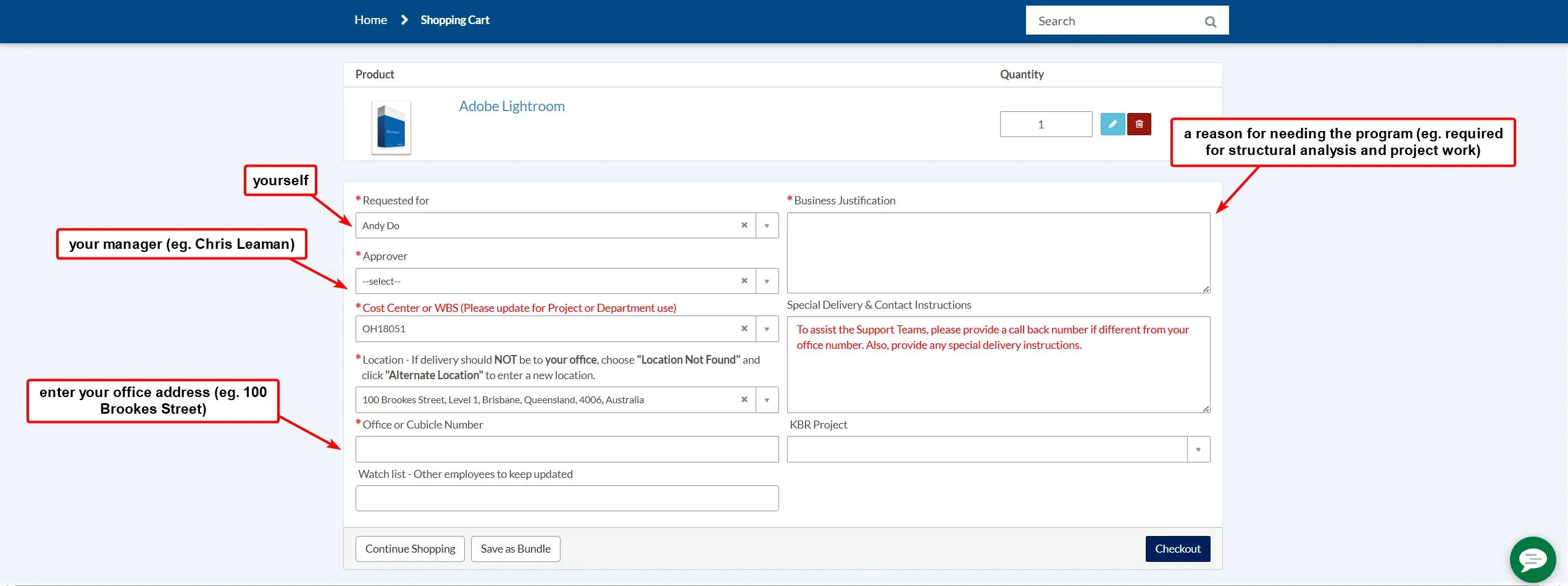
- Finally, click the Checkout button and then it will be left to your manager to approve.
After the software has been approved, it will be added to Company Portal and Software Centre, or ESSIA if it is an engineering program.
- Get to the DASH Ticket portal by going on Workday, under Quick Tools select IT Support Dash OR use this link DASH Ticket Portal
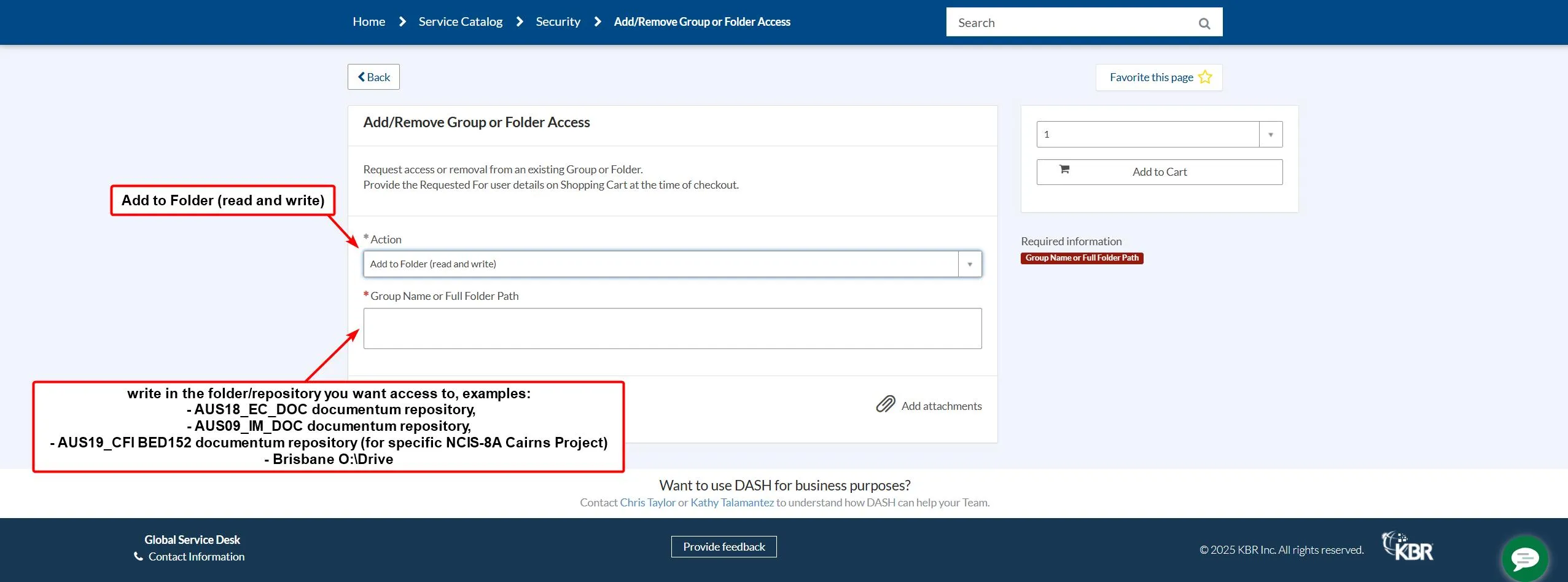
- Select Add/Remove Group or Folder Access under Popular Items.
- For access on some of Documentum repositories, follow the below steps:
- Read/write access to “AUS18_EC_DOC” for general maritime projects. Approver can be Chris Leaman.
- Read/write access to “AUS09_IM_DOC” for historic maritime projects. Approver can be Chris Leaman.
For some specific projects, you will need access to these repositories. No need to put DASH tickets in for these unless you are on these projects:
- Read/write access to “AUS19_CFI BED152” for NCIS-8 HMAS Cairns. Approver should be Jenny Loveday.
For access on Brisbane’s Modelling O:\ Drive”:
- Read/write access to “\bnefile300\data$\Modelling” for coastal modelling projects.
For access on Sharepoint folders, some projects will require access by sending an email to specific personnel, including:
- SRF-W: Chris to email SEA1010 and mitchell.goldsmith@kbr.com
- After adding to your cart, select Cart on the top right, then View Cart and then follow these steps on required inputs:
- Approver: see Step 3 for Approver Personnel
- Office or Cubicle Number: enter your office address
- Business Justification: enter a valid reason for needing access to folder (eg. Required to access project work and documents.)
- Finally, click the Checkout button after all the inputs have been filled in and then it will be left to the approver.
If you’d like to be able to use/plugin a USB hard drive on your laptop, you will need to put a DASH ticket in: Portable storage devices.
Documentum
Section titled “Documentum”KBR uses Documentum to share project folders and documents globally. To access Documentum follow the instructions below:
- Install Documentum Webtop Prerequisites from the Software Center. If this is not available in the Software Center, submit a DASH ticket to be assigned and available, then install it.
- Make sure that Documentum Webtop Prerequisites is added to your browser as an extension. Check this by going to your browser >> Extensions >> Manage extensions >> My extensions >> “OpenText Documentum Client Manager” tick should be turned on.
- Submit DASH tickets to access repositories (see steps above).
- Logon to Documentum using your normal KBR username and password (letter in lower case is required to be used in username for Documentum login). Choose a repository as required and is already access approved.
Other references
Section titled “Other references”For additional guidance, refer to the following documents: